How to I configure my text messages?

How to I configure my text messages?

Step 1

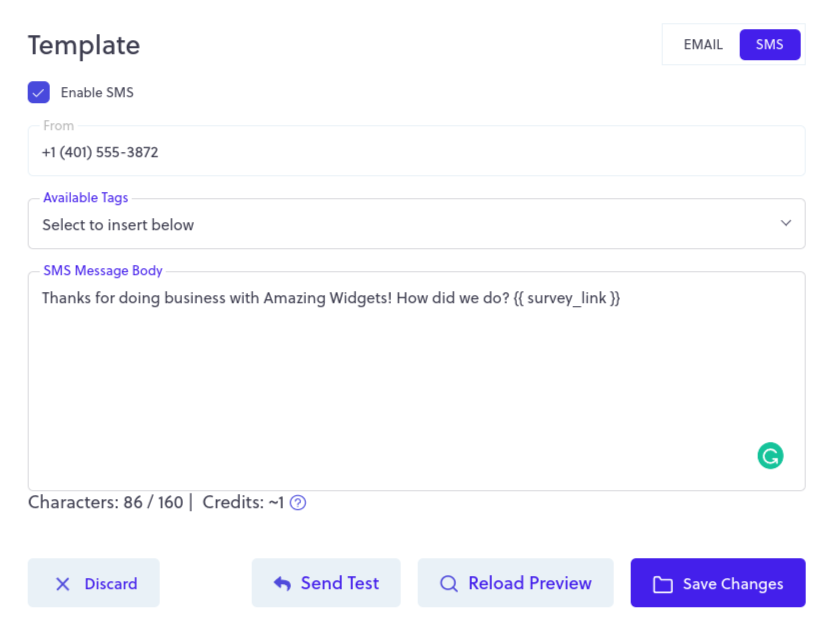
Once SMS is added to your plan, go to Settings and review your outbound messages: Survey Invitation, Survey Reminder, and Review Reminder.

In the upper-right of the edit window, you’ll see a toggle switch allowing you to edit either your email or SMS message. Choose SMS, and edit the text message to your liking. Take note of the character count at the bottom. If your message exceeds the limit of 1 text message, LoyaltyLoop will break the message into multiple text messages. Remember, each text message uses 1 SMS credit.

loyaltyloop sms settings

Step 2

Send yourself a test SMS to make sure your message appears correctly. At the bottom of the edit screen, click on the “Send Test” button, and then enter your cell phone number. Look at the text message to ensure it's how you want it to appear.
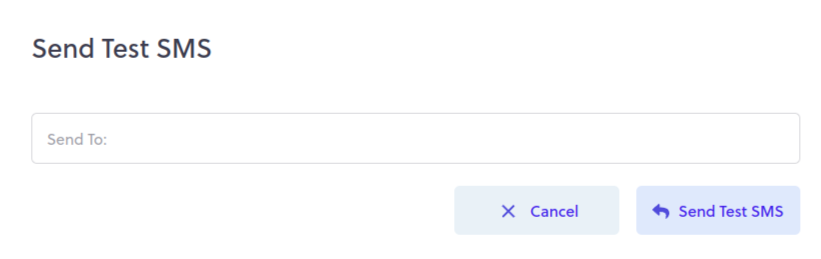
loyaltyloop sms settings

Step 3

The final step is to tell LoyaltyLoop which customers prefer SMS. By default, all customers are set to receive email even if SMS sending is enabled. Make sure you enter a correctly formatted mobile number for customers, then set the customer's preference to SMS. First, click Customers from the left main menu.


Single customer

  1. Click the row of the customer in question
  2. Click "Edit Customer Details"
  3. Click SMS and confirm their mobile number, then click Save Changes

Multiple customers

  1. Click the checkbox next to one or more customers
  2. Click on the pull-down menu that reads, “Set Communication Preferences” and choose SMS
  3. Notice the Communication Preference column
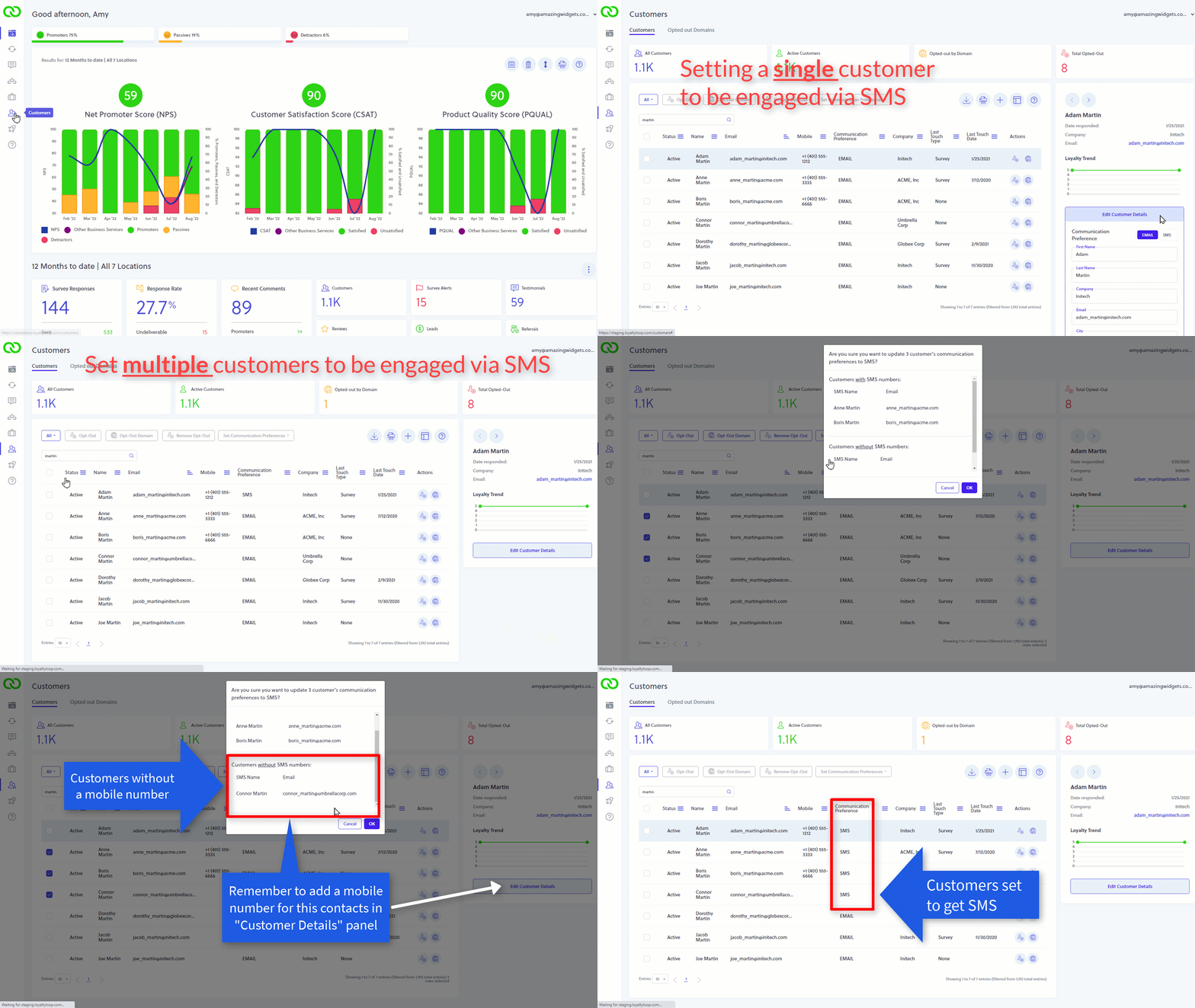
loyaltyloop setting contacts to get sms
 

    • Related Articles

    • How to enable the SMS Add-On?

      Step 1 Sign in as an Admin User. Click your email address in the upper-right and then click Settings. In the Admin grouping, click SMS settings. Step 2 Choose how LoyaltyLoop should handle any SMS Overages. Then click the button “Add to my ...
    • SMS: A2P 10DLC Registration

      LoyaltyLoop provides SMS (text messages) as a communication channel to send feedback and related requests to customers. In order to use SMS, there are specific registration requirements now imposed by all carriers. Business SMS messages are ...
    • Can I send a customer a survey invitation now? Request Now!

      As a matter of practice, LoyaltyLoop automates and manages the process of requesting feedback from your customers and clients. However, from time to time the need may arise when you wish to manually send a request to a single contact. The new Request ...
    • How to Add Template Tags to Your Emails

      Template tags allow you to dynamically insert specific details from your customer data directly into your emails. These fields, such as a customer's name, order description, ship date, or even the name of the sales representative that helped them, ...
    • How to add an opt-out link to emails in LoyaltyLoop

      LoyaltyLoop is sending transactional emails to your customers, after they've transacted with your business. These emails are in response to your customer buying from you, and hence are not "unsolicited" emails. Just as an email from you to your ...