How to Add Template Tags to Your Emails
Template tags allow you to dynamically insert specific details from your customer data directly into your emails. These fields, such as a customer's name, order description, ship date, or even the name of the sales representative that helped them, can be pulled from your existing customer information and used to personalize your messages.
Why Personalize Your Emails?
A customer is far more likely to engage with and respond to a message that feels tailored to them. By including specific details relevant to their experience, you make the email less generic and more engaging. This not only shows that you value their individual interaction but also helps reinforce your brand's unique voice. A personalized message feels less like an automated request and more like a direct, thoughtful outreach.
How to Add Template Tags to Your Emails
Adding a template tag is a simple process:
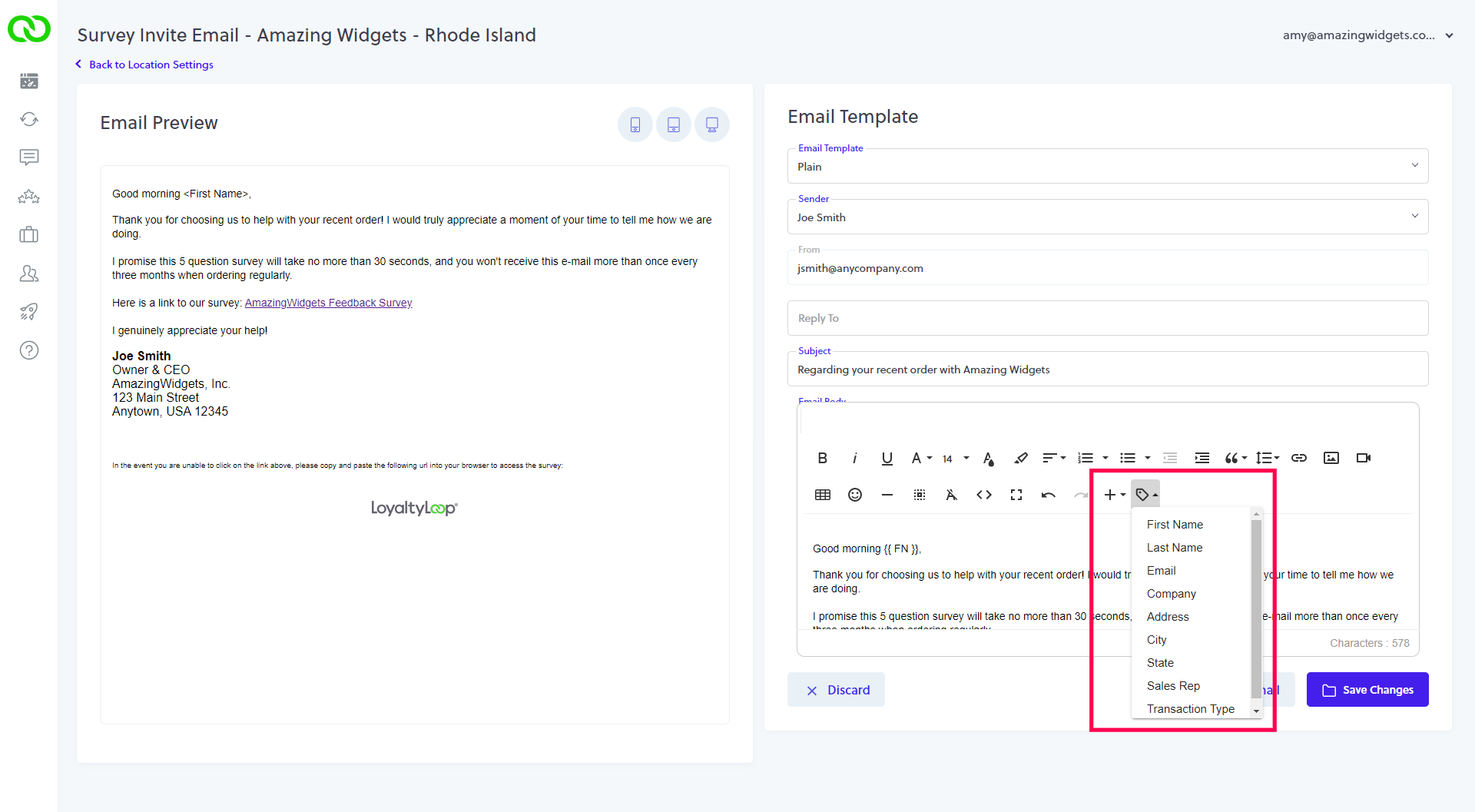
- Navigate to the Email: Go to the specific email you'd like to edit (for example, your survey invitation).
- Position Your Cursor: Find the exact spot within the email's content where you want to insert your template tag.
- Select the Tag: Look for the Tag icon on the right-hand side of the email editor. Click on it.
- Choose Your Tag: A dropdown menu will appear, displaying all available template tags from your data. Simply select the one you wish to insert, and it will automatically populate your email. That tag will appear surrounded by curly braces. For example, inserting "Company Name", will appear as
{{CMP}}.
If there's a particular data field you're collecting that isn't appearing in the template tag dropdown, don't worry! Just contact LoyaltyLoop Support. We can help by adding that specific field from your data into your account, making it available for use as a template tag.