Save Your Reports in Feedback by Filter

Save Your Reports in Feedback by Filter

Sometimes you need to see things in a different light to fully grasp what you’re looking at. Understanding how your customers feel about working with your business is easy with LoyaltyLoop. One of the great features of the Promoter and Premier plans is the advanced reporting from the feature Feedback by Filter.

Using Feedback by Filter you can isolate feedback in more detailed ways that help you understand your customers and business at a deeper level. This is accomplished by running reports that are filtered using the additional data you include with your survey launch file or integration.

For example, if you include the Sales Rep with your survey launch data, you can isolate NPS by Sales Rep, to understand how customers rate your business relative to the person managing the customer relationship. Any data field included in your launch data can be used as a filter. Creating Feedback by Filter reports can be particularly useful and illuminating.

You now have the ability to save your filters, so they are quickly available to you at any time. Here’s how:

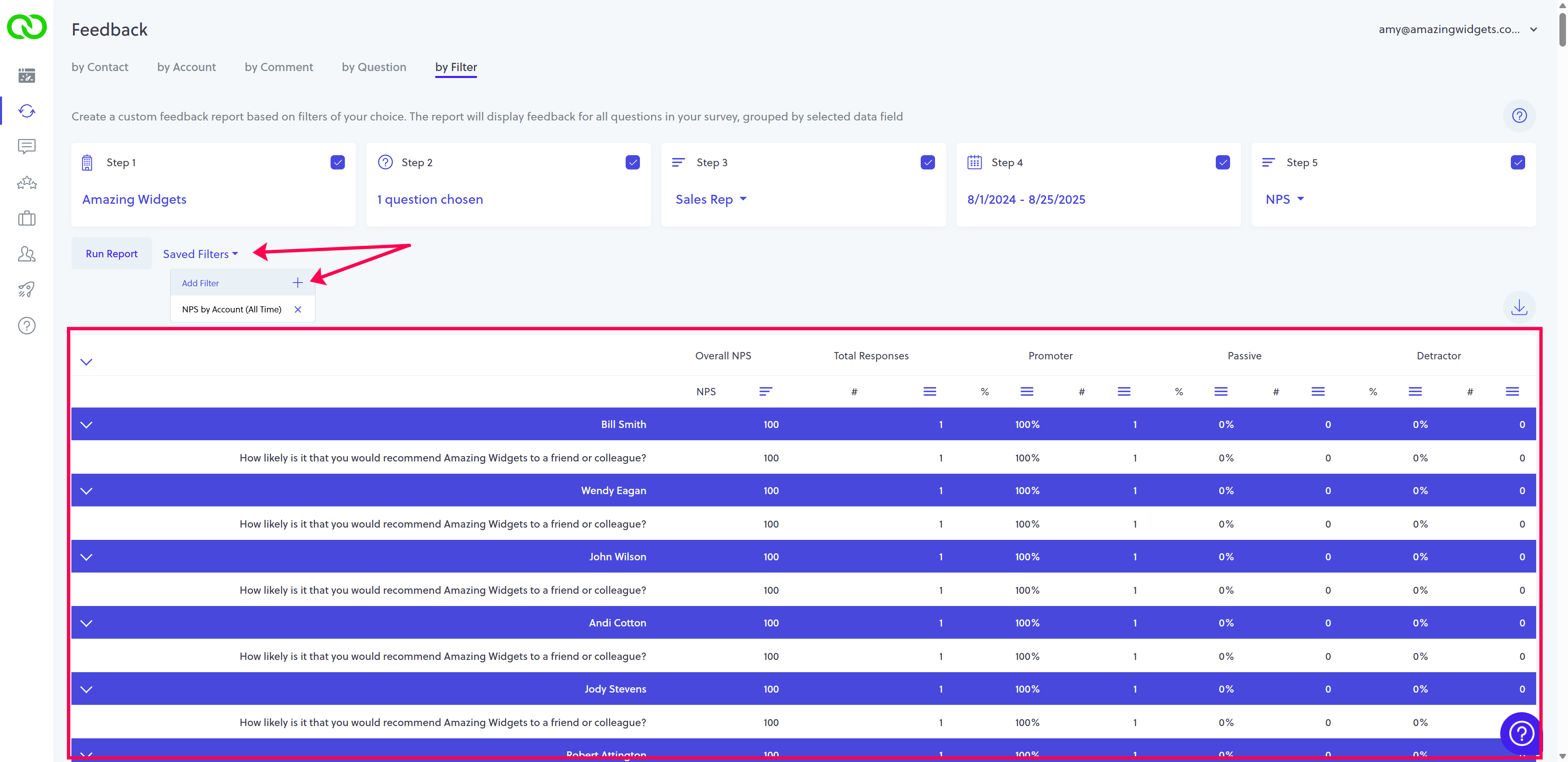
  1. Create your report by setting each of the 5 report attributes, and Run Report as usual.
  2. loyaltyloop feedback by filter
  3. Click Saved Filters, then the plus icon to Add Filter.
  4. loyaltyloop feedback by filter
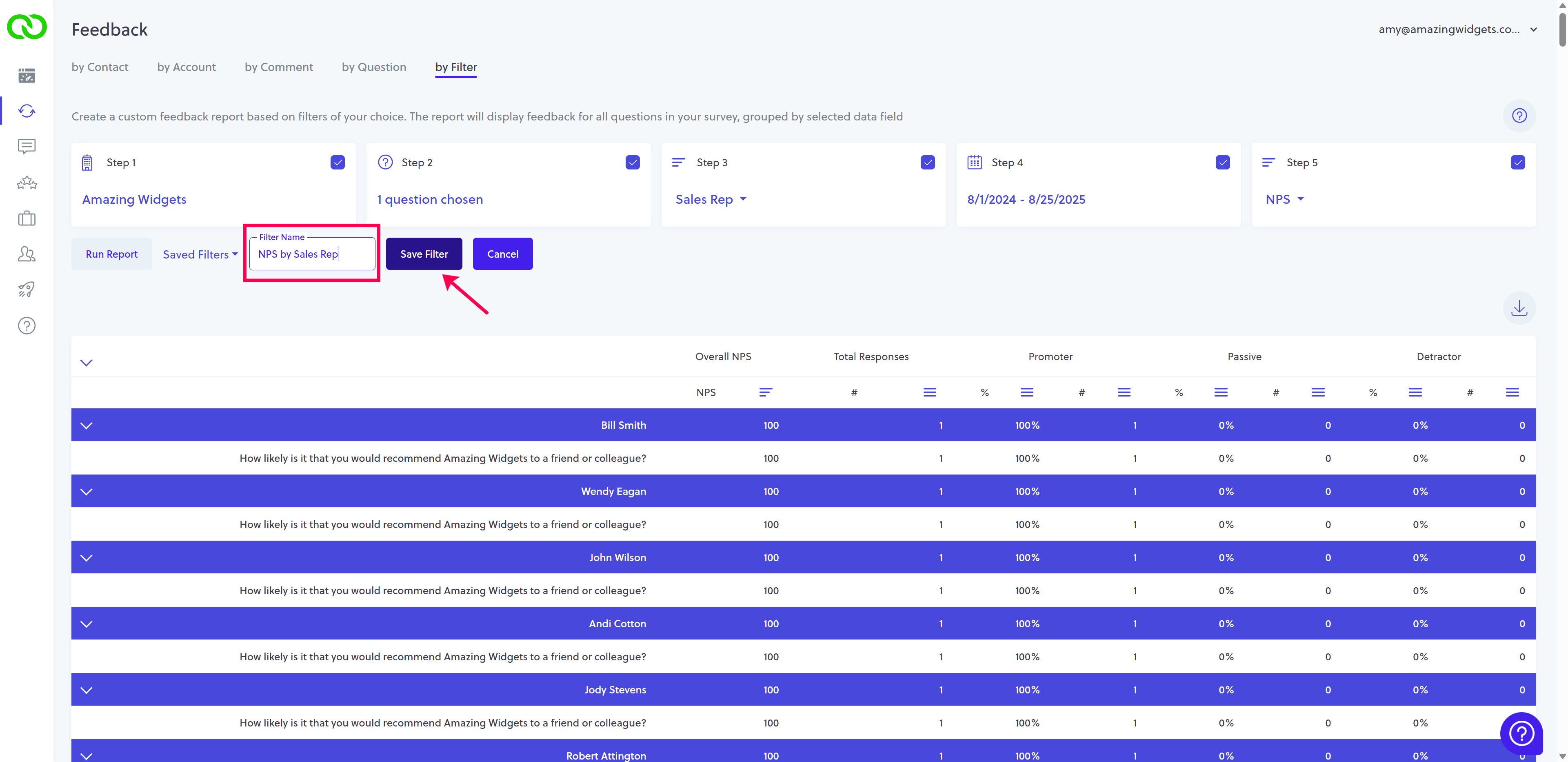
  5. Give the report filter a name, and then Save Filter.
  6. loyaltyloop feedback by filter
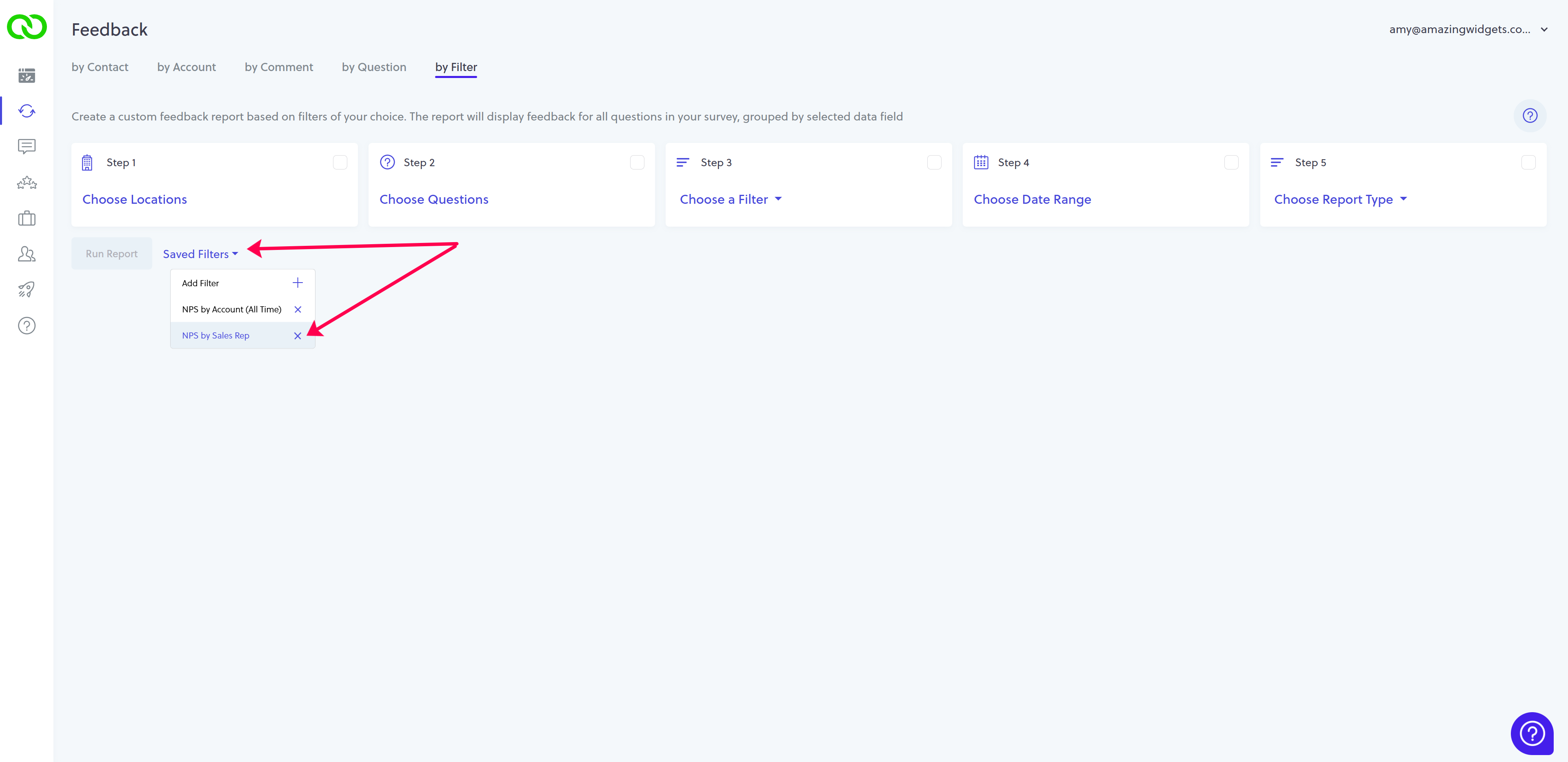
  7. To recall any saved filters, go to Feedback by Filter, click Save Filters, and click the one in question. All the filters will be loaded, and all you have to do is click Run Report.
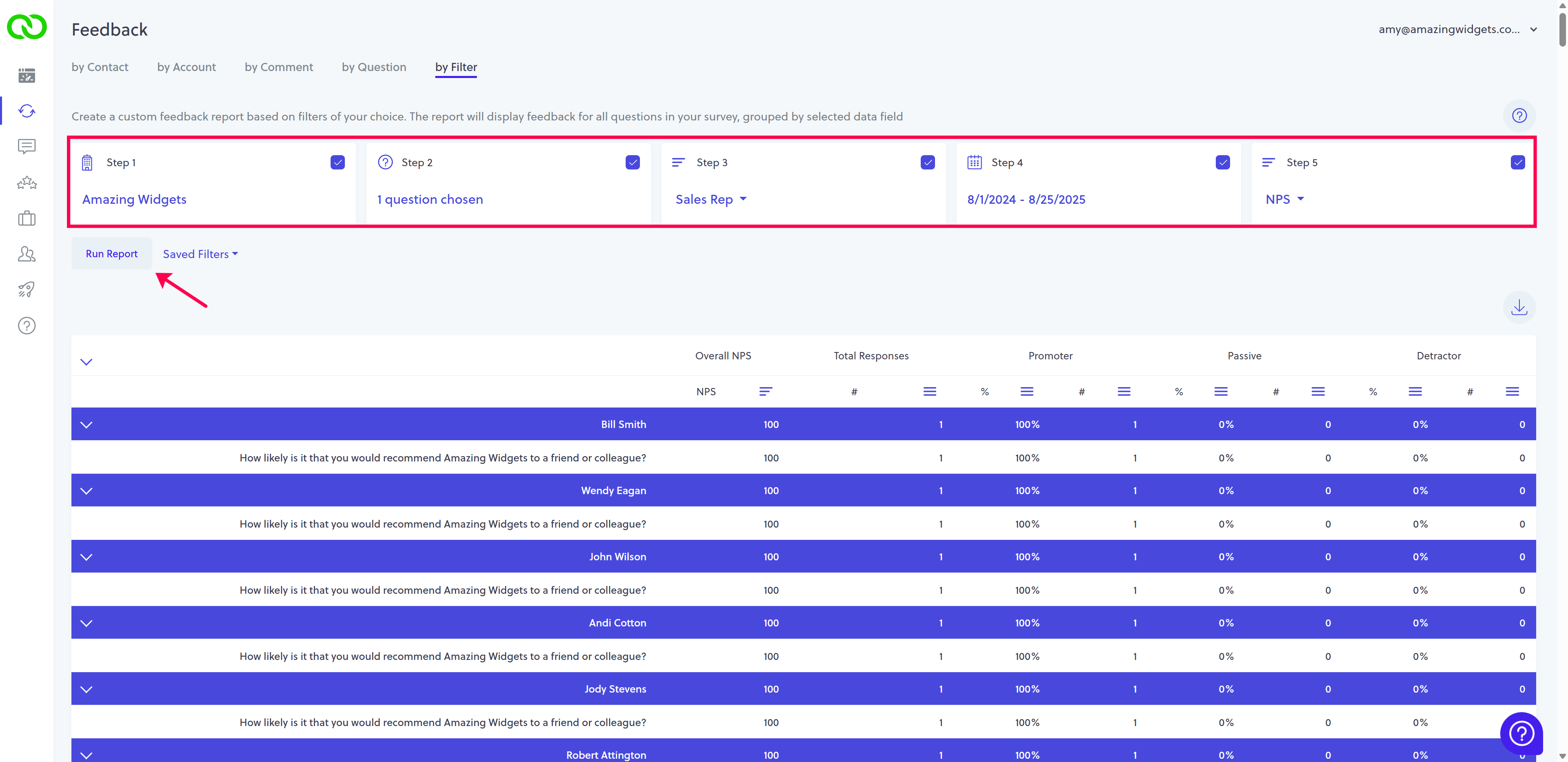
  8. loyaltyloop feedback by filter
    • Related Articles

    • How to create advance reports by using feedback by filter

      The Feedback By Filter page allows you to create custom reports to view satisfaction and loyalty results in advanced ways that help you identify areas to improve. The reports allow you to view response results grouped and summarized by one of the ...
    • View feedback and CX metrics grouped by Account

      Available in LoyaltyLoop Premier plan, view NPS and other CX metrics by group. By default, LoyaltyLoop automatically groups contacts by their email domain. This is particularly helpful when servicing large organizations with multiple buyers or ...
    • How to view feedback by customer

      The Feedback by Customer page provides each customer's survey response data. This page is broken into three sections: the Summary Widgets, the Response Table, and the Detailed Response View. First select the Feedback Icon on the left main menu. You ...
    • Why do I get Poor Feedback Alerts from my Customer Satisfaction and Product Quality questions, and when a customer Passive?

      Poor Feedback Alerts trigger based on Detractor responses (i.e. "Not Sure", "Unlikely", or Very Unlikely" or 0-6) to your Net Promoter Score question.  However, you can configure this alert to trigger on your other Customer Experience (CX) questions ...
    • How to view feedback by question

      The Feedback By Question section provides feedback data on each question in your survey. This page has two sections. Summary widgets of stats along the top, and a chart for each question. Each question (chart) displays a summary table of overall ...