Autotask LiveReports Setup
Overview
For most Autotask users, it is recommended to leverage the Autotask to LoyaltyLoop inbound integration for their 'Closed Ticket' and 'Decision Maker' surveys. The integration leverages the most common uses of Autotask, but does not respect any "User Defined Fields" (UDF). Autotask users who need to consider UDF in their LoyaltyLoop triggers can supplement or replace the integrations by leveraging the automated scheduled reports via the 'Live Reports' in Autotask. Here's how:
 Tips before starting:
- To avoid sending the same customer other surveys, ensure all native Autotask customer feedback surveys are disabled. In Autotask, go to Admin, Automation, then Email Notifications & Surveys, then Surveys. Then disable conflicting native surveys.
- Throughout our directions below, we reference "Account" as an Autotask element. Your Autotask may reference this same element as a "Client". For example, "Primary Account Contact" may be "Primary Client Contact" in your Autotask version.
- If you plan to send the Active Primary Contact survey for Autotask, make sure you move any inactive customers to inactive in Autotask, as LoyaltyLoop's integration will fetch "active" accounts to engage.
- If you use custom fields, they need to be visible for LiveReports.
- Autotask article "Why are new UDF's not showing on tickets?"
- How to add User-Defined Fields to Accounts in Autotask:
How to add User-Defined Fields to Accounts in Autotask:
- Go to Admin > Features & Settings > Accounts and Contacts > Account Categories > select EDIT for the Standard (default) category.
- Next, go to the Details tab and scroll down to the Sections & Fields section to make your new User-Defined Fields visible.
- Use your cursor to grab the data fields to place them anywhere you want in your Sections & Fields section.
- Be sure to Save & Close when you finish.
- Go to Admin > Features & Settings > Accounts and Contacts > Account Categories > select EDIT for the Standard (default) category.
How to configure an automated report in Autotask for your Primary Customer Contact
1. First Navigate to Main Menu from the burger bar in the top left corner, highlight reports and select LiveReports Designer
2. Next, select the “+” icon to create a new report
3. Select Express Report
4. Name your report “LoyaltyLoop Active Primary Contact” and save your report as a “LiveReport”. Report must be saved as a LiveReport. LiveReports can be scheduled to run automatically.
5. Next, select Categories from the top menu. For this report from the Contacts & Accounts category select *Contact and Account
6. Next, select Filters from the top menu. From the dropdown menu select *Contact -Primary Account Contact and set Equal To Yes. If your Primary Contact survey should respect a *Contact UDF, include that field with the appropriate rule in this step.
7. Next, from the dropdown menu select Account - Active and set Equal To Yes. If your Primary Contact survey should respect a Account UDF, include that field with the appropriate rule in this step.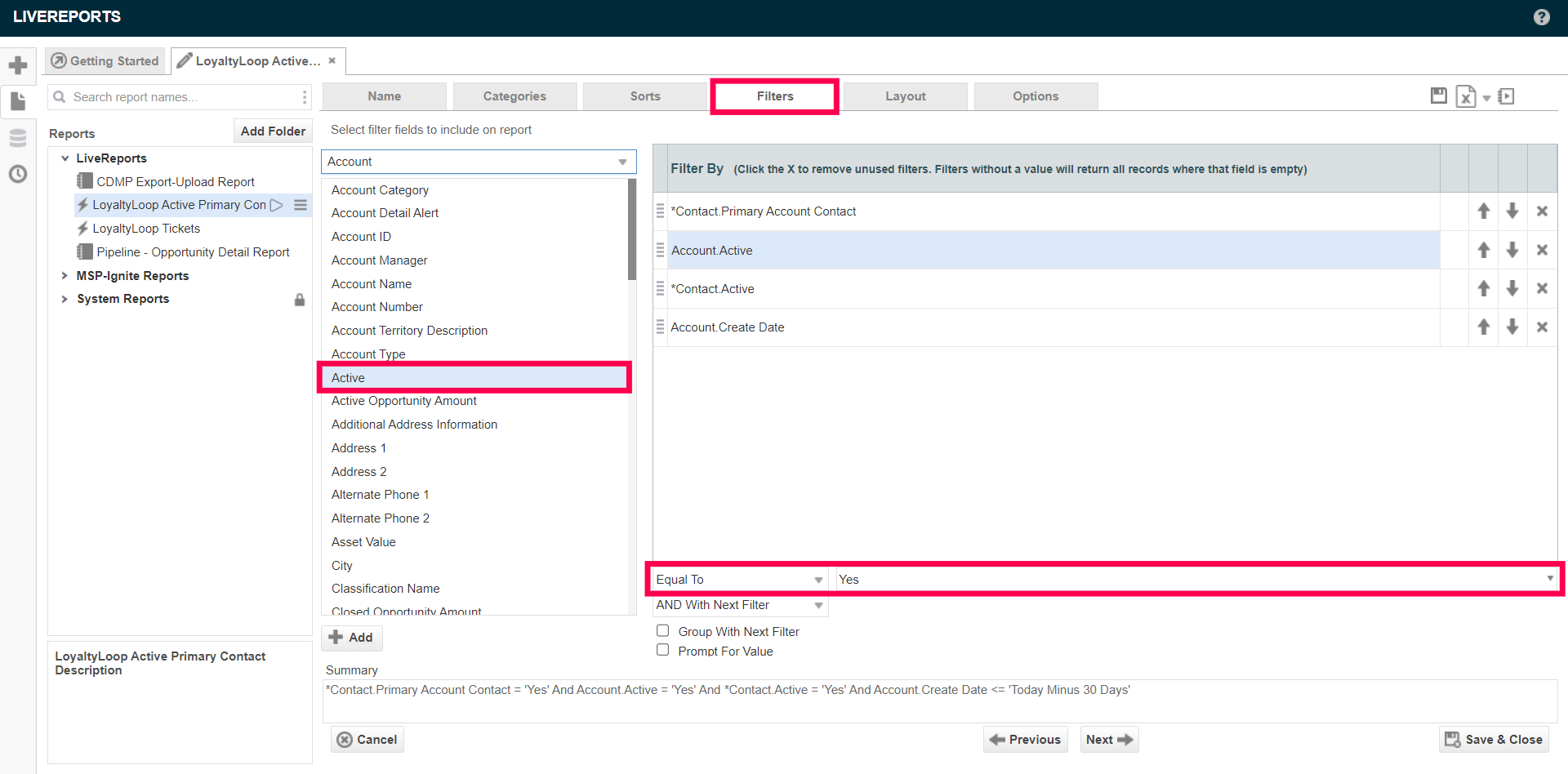
If your AutoTask includes Account Types other than closed customers, we recommend adding an Account Type Filter to your report. From the dropdown menu select Account Type and set Equal to Customer. Add filters to include or exclude other Account Types as appropriate for your business.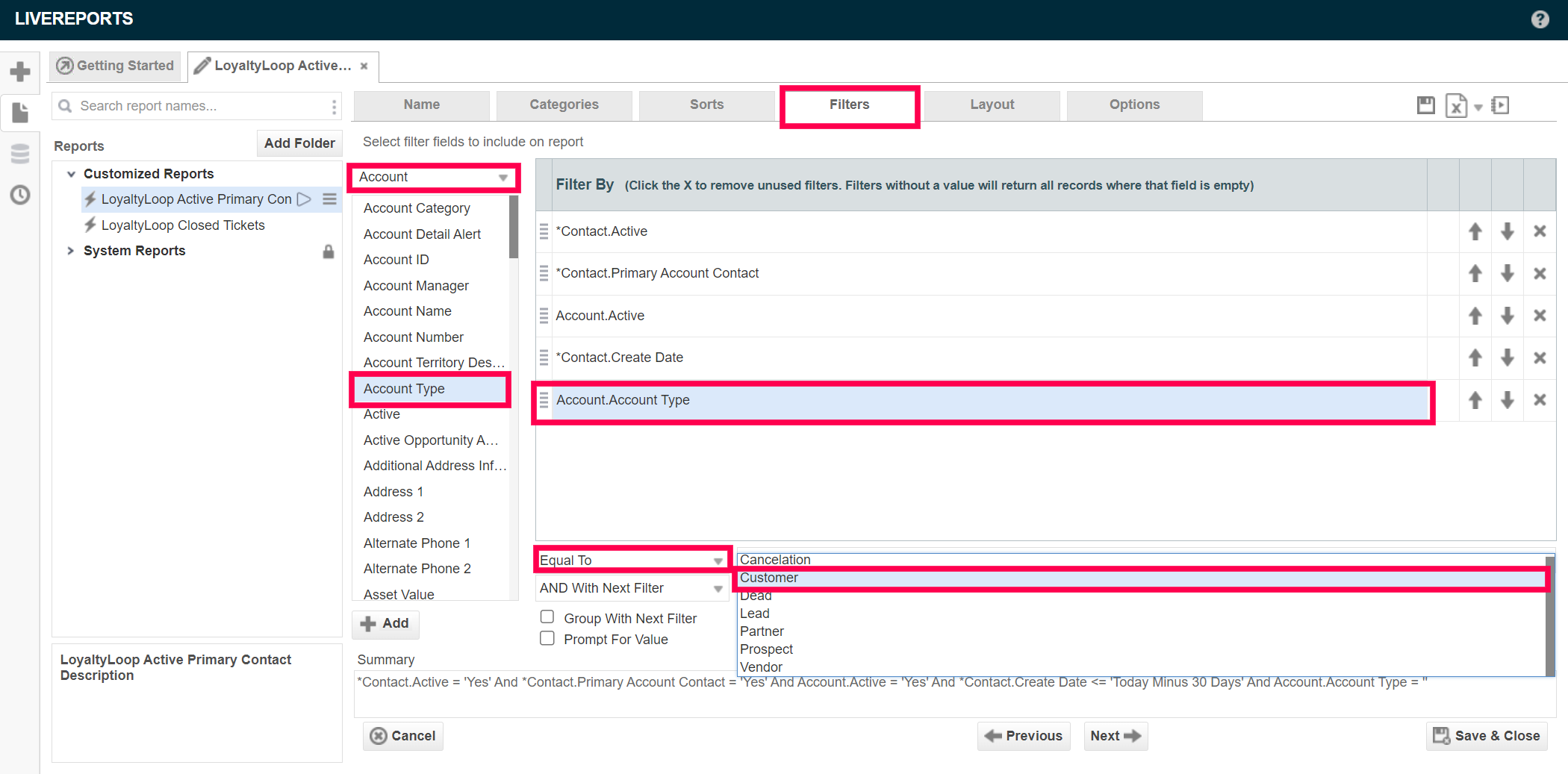
If you use the Contact flag Opted out from surveys, add that Filter to your report, and set the value to Equal to No.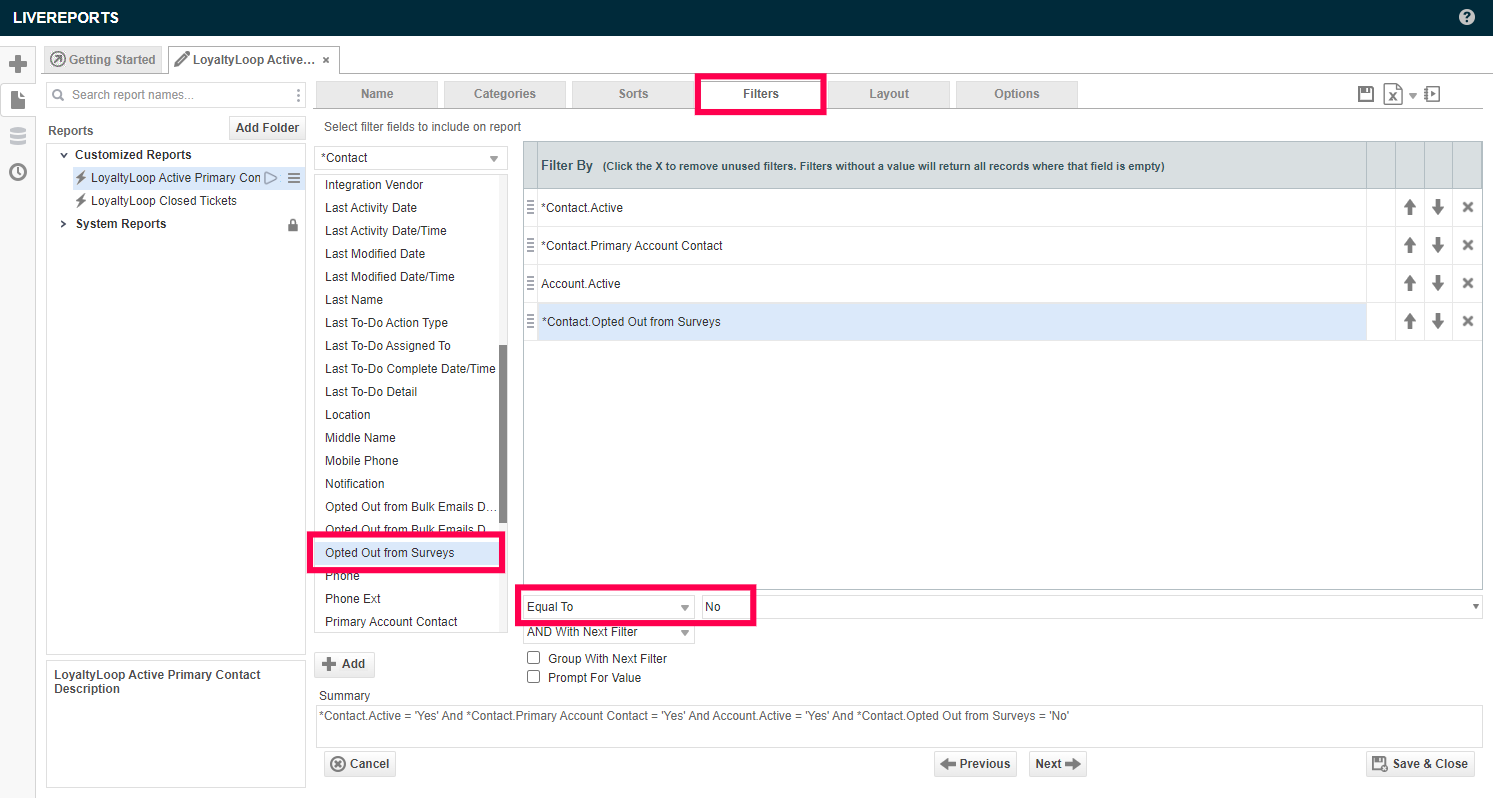
8. Next from the dropdown menu select *Contact - Active and set Equal To Yes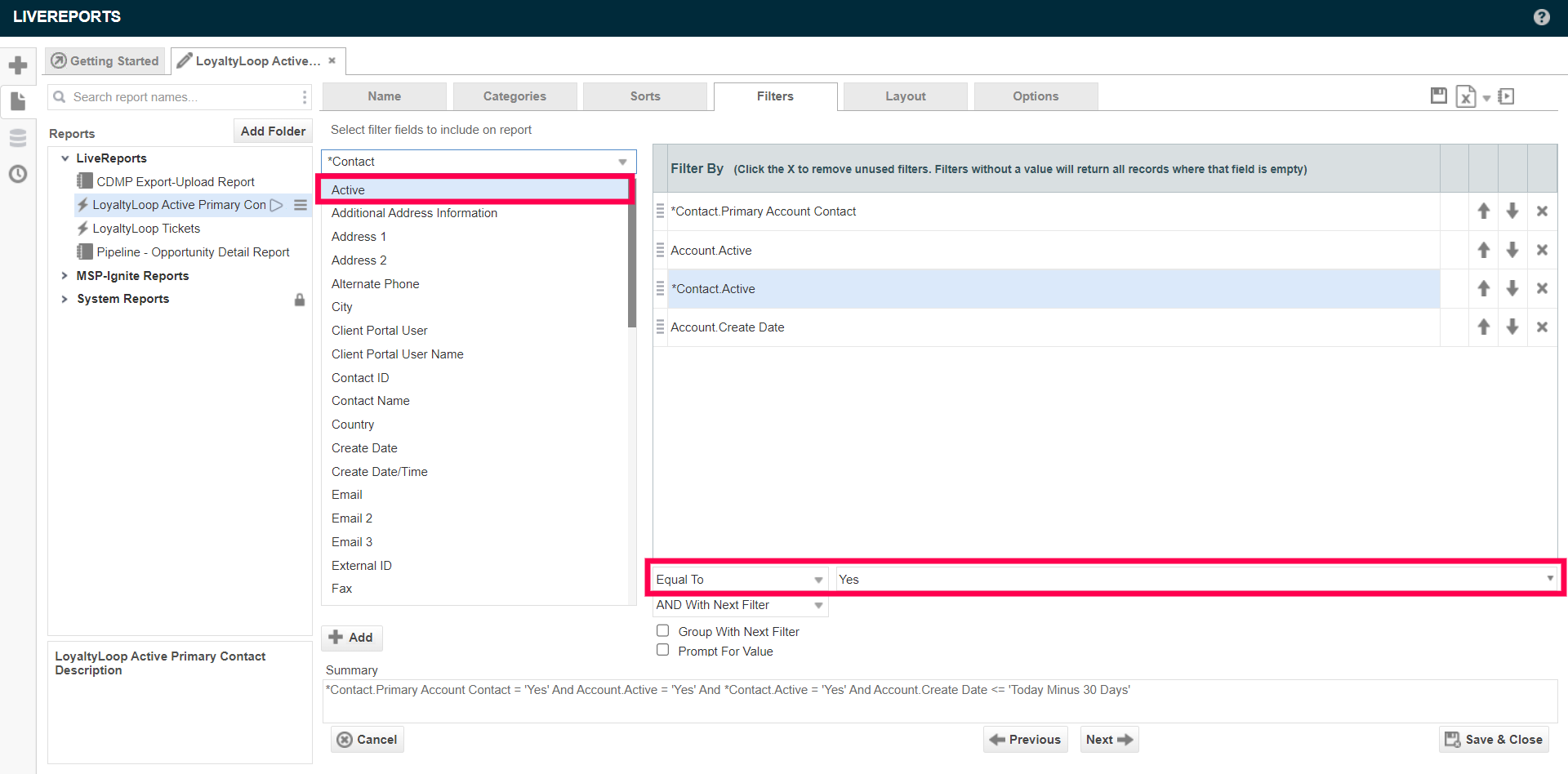
9. Next, from the dropdown menu select *Contact - Create Date and set Less Than or Equal To Today Minus 30, 60, or 90 days (using the fx button). This means a contact will not be eligible to receive their first LoyaltyLoop survey until they have been a customer for at least 30 (60, or 90) days. If your business practices differ, you can set this date range however you please.
10. Next, from the top menu select Layout. Now configure the data fields that will be included in the report. Recommended fields include:
1. Contact. Email (Required) | 9. Contact.Address 1 | 16. Contact.PhoneNumber |
2. Contact.First Name | 10. Contact.Address 2 | 17. Contact.ZipCode |
3. Contact.Last Name | 11. Contact.City | 18. Account.Account Manager |
4. Account.Account Name | 12. Contact.State | 19. Account.Create Date |
11. Next, from the top menu select Options. Set the Allowed Export Types to Excel and select “Save & Close” button in the bottom right corner of the window.
12. Next, to schedule your report select the burger menu from the left window next to the report saved as LoyaltyLoop Active Primary Contact Report. From there, select Schedule Report.
13. Next, configure the Recurrence. Name the Schedule and set Export Type Excel. Schedule Time (recommended 1:00 am) and the Recurrence Pattern (recommended the first day of every 1 month(s) with an end date of 12/31/2099)
14. Next, select Recipients and select To:
15. Next, copy your Launch File Email Address from your LoyaltyLoop Primary Contact survey.
16. Select Finish
How to configure an automated report in Autotask for your Closed Ticket Contacts
1. First Navigate to Main Menu from the burger bar in the top left corner, highlight reports and select LiveReports Designer
2. Next, select the “+” icon to create a new report
3. Select Express Report
4. Name your report “LoyaltyLoop Closed Tickets” and save your report as a “LiveReport”. Report must be saved as a LiveReport. LiveReports can be scheduled to run automatically.
5. Next, select Categories from the top menu. For this report from the Service Desk category select *Ticket, Account and Ticket Contact
6. Next, select Filters from the top menu. From the dropdown menu select *Ticket - Status and set Contains Complete. If your Closed Ticket survey should respect any *Ticket UDF, include the field and the rule here.
8. Next from the dropdown menu select *Ticket - Complete and set Is Not One Of, then select all "Admin", "Automation" and "Test" options.

NOTE: If you cannot scroll down in the dropdown menu, type the key word into the text field to the left of the dropdown menu button, and then click the dropdown button, and select all records with that key word. Repeat this for each key word.
9. Next, from the top menu select Layout. Now configure the data fields that will be included in the report. Recommended fields include:
1. Ticket Contact.Email (Required) | 9. Ticket Contact.Phone | 16. Ticket.Contact ID |
2. Ticket.Status | 10. Ticket.Contact City | 17. Ticket.Contact First Name |
3. Ticket Contact.Address 1 | 11. Ticket.Contact State | 18. Ticket.Ticket Number |
4. Ticket Contact.Address 2 | 12. Ticket.Contact Zip Code | 19. Account.Account Name |
20. Ticket.Complete By |
10. Next, from the top menu select Options. Set the Allowed Export Types to Excel and select “Save & Close” button in the bottom right corner of the window.
11. Next, to schedule your report select the burger menu from the left window next to the report saved as LoyaltyLoop Active Primary Contact Report From there, select Schedule Report.
12. Next, configure the Recurrence Name the Schedule and set Export Type Excel. Schedule Time (recommended 1:00 am) and the Recurrence Pattern (recommended daily/every weekday)
13. Next, select Recipients and select To:
14. Next, copy your Launch File Email Address from your LoyaltyLoop Ticket Survey.
15. Select Finish