How do I upload files to LoyaltyLoop?

How do I upload launch files to LoyaltyLoop?

To upload your launch file(s), go to Launches from the left main menu.  This will land you on the Launch Pad.  Then select, (1) the location, and (2) the survey you wish to send. Then, (3) drag & drop the file(s) associated with this specific location's survey into the green drop-zone, or browse to attach them. The system will accept either CSV, TXT, XLS, and XLSX formats. The uploaded files will appear in the adjacent table, confirming the upload was complete.
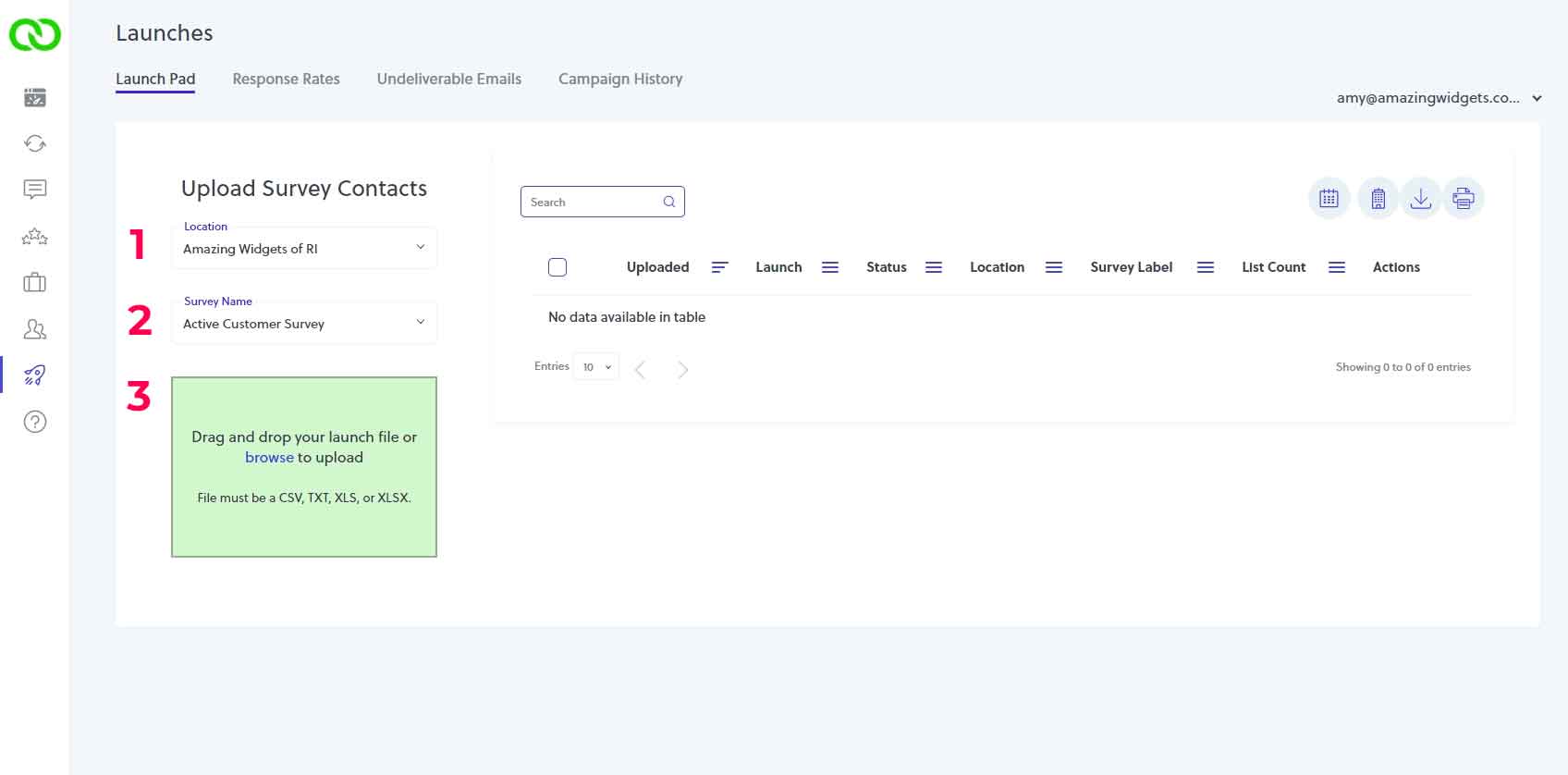
loyaltyloop launch pad

Once your file is uploaded, it will appear in the table to the right. You can upload as many files as you need. Upon upload, the file will be in a PENDING processing state. While PENDING, you can download the file to confirm the contents were received correctly, or you can delete the file (if you uploaded the incorrect one).
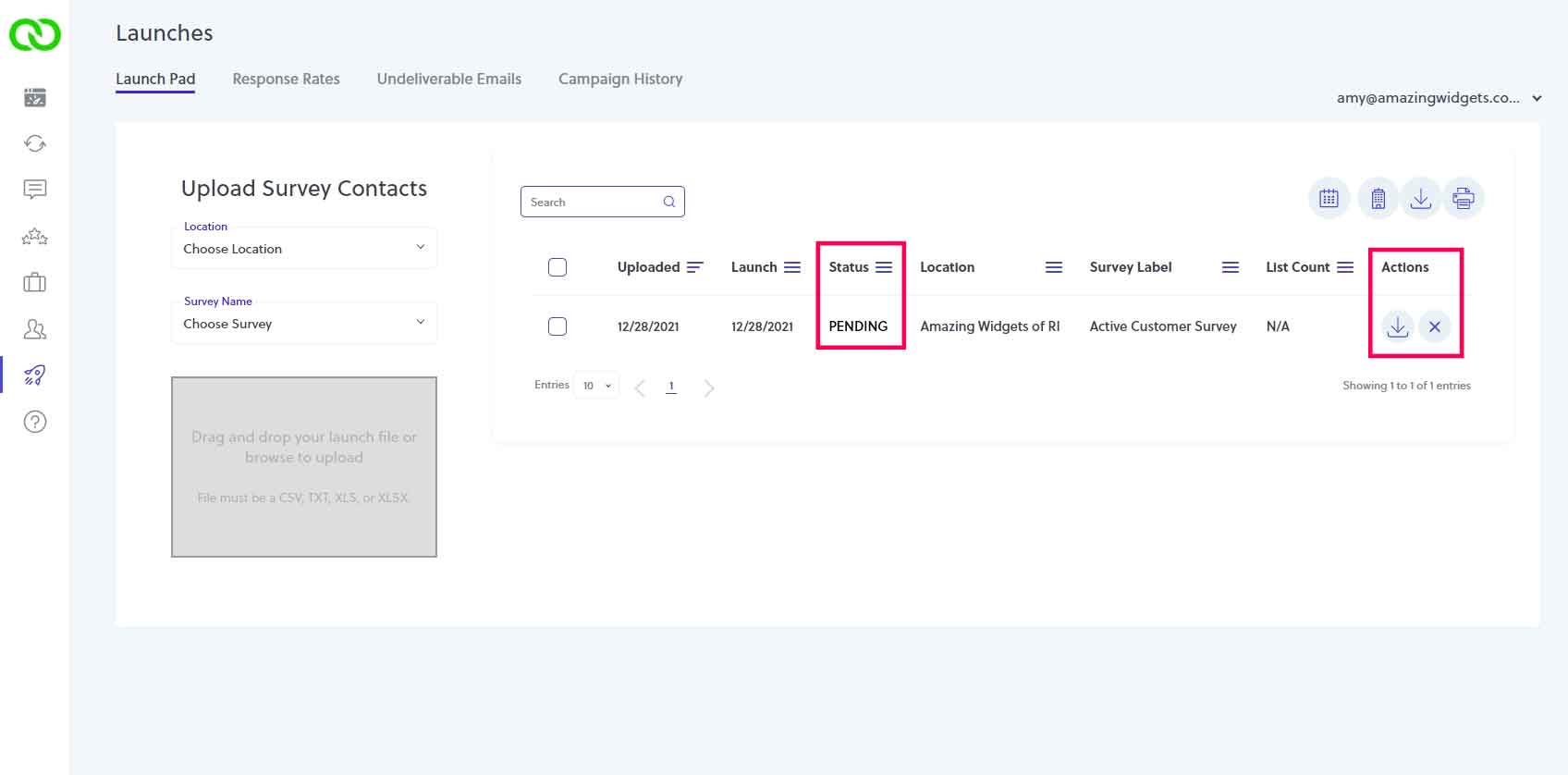
loyaltyloop launch pad

Once the file has been processed and shows that it is SCHEDULED, you can see the scheduled launch date in the table. Any time before the scheduled launch date you can (1) pause the launch from being sent, allowing you time to make changes, then reschedule it for any day you choose (again, we recommend Tuesday through Thursday), (2) delete the launch from ever being sent.
loyaltyloop launch pad

Once paused, you can review the list of who is set to receive your survey. This is the post-processed list, and all filters configured on your survey have been applied at this point. By default, LoyaltyLoop will "Include" every contact in your survey launch. However, if you see someone who you don't want to survey during this period, simply set that contact's Action to "Remove (just this time)". If you see someone who should never receive your surveys, set the Action to "Opt-Out (now and in the future)."

How long will my files be on the Launch Pad?
The time a file appears on your Launch Pad will depend on your specific survey launch frequency (daily, weekly, monthly) and when your data is received. The file may appear on the Launch Pad for only minutes, or could be days. For example, if your survey is configured for weekly or monthly launch frequency, and your file is uploaded before 9am ET the morning of a regular launch day (Tues, Weds, Thurs), the file may appear on the Launch Pad only momentarily. However, if you upload your file on a Thursday evening, the file will appear on the Launch Pad until the morning of the next available launch day - the next Tuesday - at which time your survey will launch.

What happens if I still choose to email my launch files to you?
Your emailed launch files will still appear on your Launch Pad. Depending on when your emailed files are received, they may only appear on your Launch Pad briefly. While you can continue to email launch files per our  updated guidance below , we recommend using the upload feature in Launch Pad.

How do I ensure I'll have time to review my processed survey list prior to launch?
If you want to ensure you have time to review your processed survey list before it launches, you should plan to upload (or send) your launch data between Thursday evening and Monday morning. Why? In an attempt to maximize your response rates, we launch surveys within our recommended launch window of Tuesday through Thursday (notwithstanding holidays, and customers on daily launch frequency). If you upload your data at the end of the week, your file will be processed during our regular business hours of Monday to Friday 8:30am to 5:30pm ET, and hence will be available for you to review until 9am of the next Tuesday, when it will be launched.

What happens to my files after Launch?
Once your survey has been sent to your customers (Lift Off!), it no longer is on the Launch Pad. To view past launch history, click the Response Rate tab on the Launches page.


    • Related Articles

    • LoyaltyLoop Survey Launch Schedule

      To ensure high response rates, LoyaltyLoop surveys launch Monday through Friday, excluding US Federal and company holidays, as per below: 2025 Company-Observed Holidays (Suspended Survey Launches) Day Holiday Wed, Jan 1 New Years Day Mon, Jan 20 ...
    • How do I email launch files to LoyaltyLoop?

      You can email your launch files to us by sending them to your location's unique Launch File Email Address.  To get your location's Launch File Email Address, click your username and then Settings. Under the Data Management section of your Location, ...
    • LoyaltyLoop Business Rules Explained

      One of the unique qualities of LoyaltyLoop is the option to set “Business Rules” that tune your customer surveys to your specific business, ensuring the correct customers are engaged for feedback at the right time. Once configured, these rules become ...
    • How do I get my launch data into LoyaltyLoop?

      There are 4 methods you can use to deliver your survey launch data to LoyaltyLoop: Automatically uploaded via one of our integrations (API or Zapier) Upload it on the Launch Pad (found on your Launches page) Emailed to us using your location's unique ...
    • LoyaltyLoop Live Training Classes

      Need a refresher on LoyaltyLoop features and functionality? Trying to learn something specific? Looking to increase your knowledge on measuring your customer’s experience or anything related to your LoyaltyLoop service. While you can always book a ...