How to enable the Albi integration
For restoration companies running there business on Albi, the LoyaltyLoop integration allows you to put your customer feedback and review process on autopilot. Follow these steps to activate your integration.
1. In your browser, open and sign-in to Albi in one tab and LoyaltyLoop in another.
In Albi
2. From the settings menu, select Integrations
3. Then, click 'Albi API' And 'Show Key'
4. And click the 'Copy the Key' button.
In LoyaltyLoop
5. From your settings menu, select the survey location that will be linked to Albi. If your account has 1 survey, skip to the next step.

If multiple survey locations will be integrated to a single Albi license, please contact support@loyaltyloop.com to assist with your integration setup.
6. From the Data Management menu, select 'Integrations'
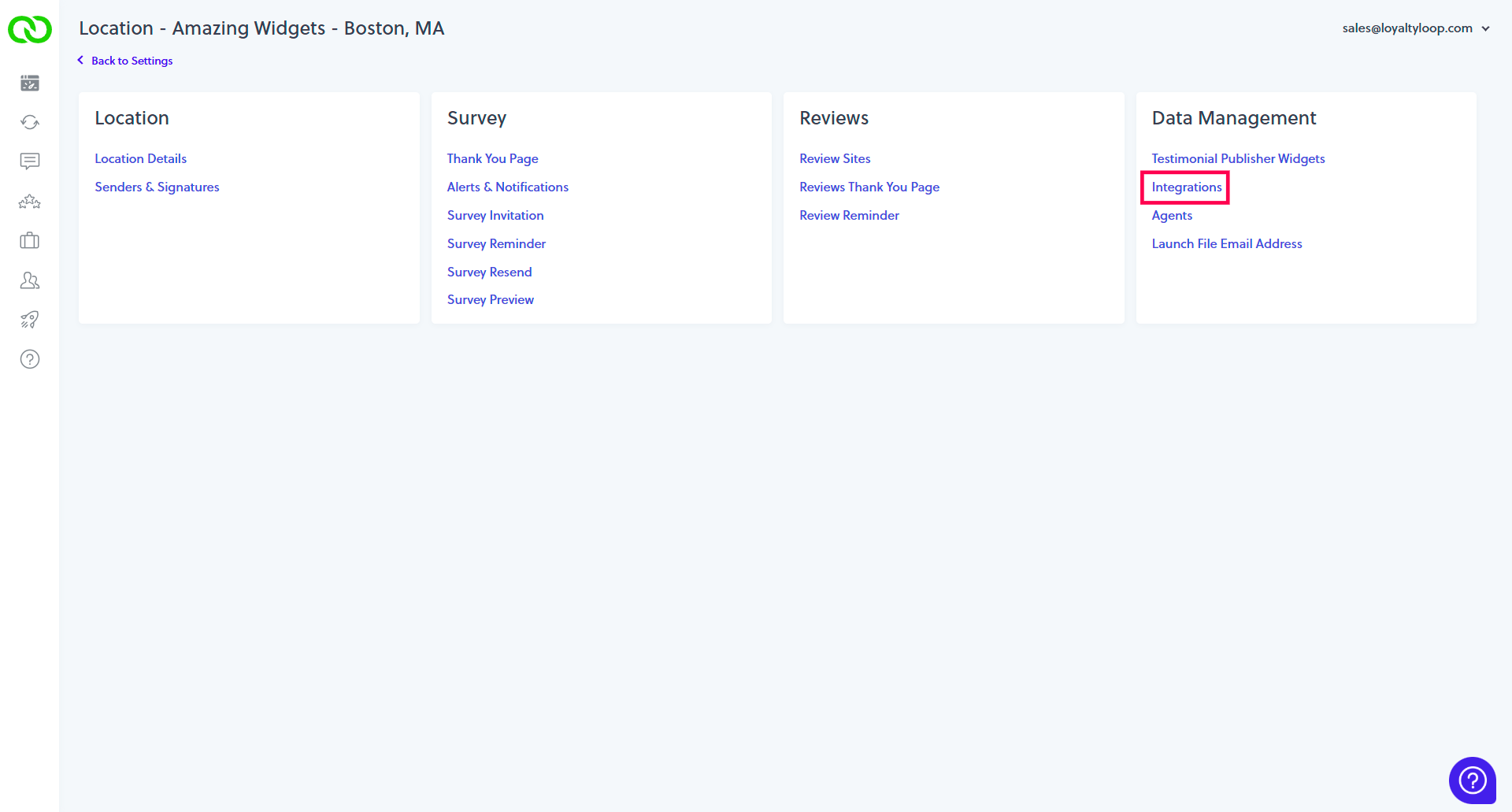
7. From the Inbound Integrations menu, select '+' to add Albi
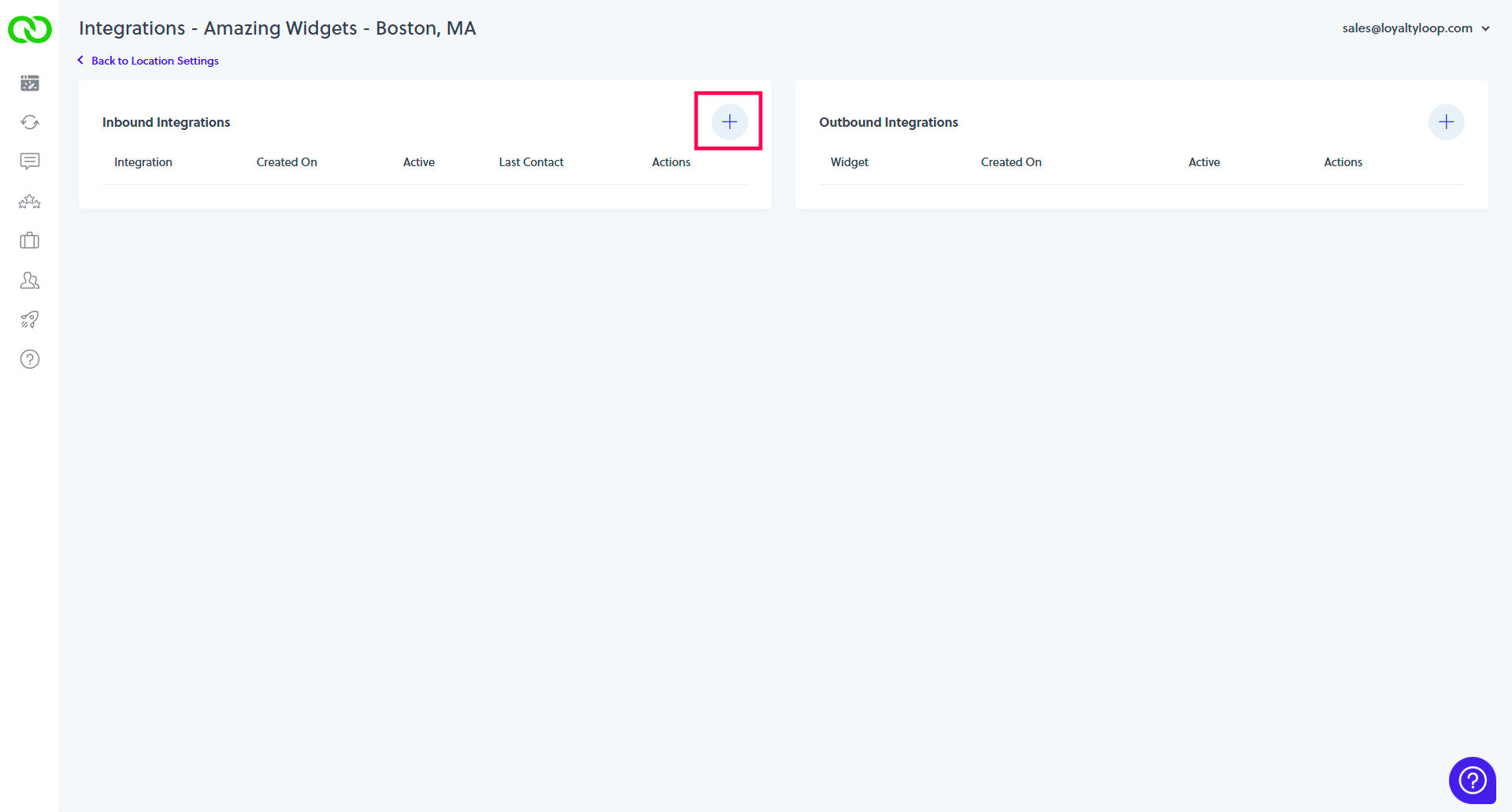 8. From the drop menu, select Albiware.
9. Paste your Albi API Key into the field. By default, LoyaltyLoop will fetch contacts with a project status of 'Closed'. You can use the '+' to enter additional Project Status values that you would like to trigger your LoyaltyLoop campaign.

We recommend you enable the Integration Failure Alert. This will notify you and LoyaltyLoop Support in the event LoyaltyLoop is unable to connect to Albi for an extended period of time.
You have now completed your Albi integration.
Integration Details
How does the integration flow data to LoyaltyLoop?
The data flows into LoyaltyLoop when the 'Project Status' matches a trigger status entered in your integration settings (see step 9). If multiple project statuses as triggers, the contact will flow into LoyaltyLoop each time the status is updated to any of those valid triggers.

Which Albi fields are included in the integration?
The following fields flow into LoyaltyLoop:
| Location_Label | Project Type | |
| Full Name | Project ID | Property Type |
| City | Project Manager | Sales Rep |
| State | Project Start Date | Project Date |
| Address | Project Status |
Will the contact receive multiple feedback requests each time the project status is updated?
No. Your existing Touch Frequency Filter (TFF) will be maintained. For example, our default TFF is 90 days. Contacts (identified by email address) who were requested to give feedback within the prior 90 days will be automatically excluded from new launches to prevent survey fatigue ("over-touching").
To adjust your TFF, please contact our support team at support@loyaltyloop.com, or 888-552-5667 option 3.
Can I impose a standard delay when sending my survey?
Yes. To ensure your customer has had the appropriate amount of time to experience your service, you can impose a delay on sending your survey. As stated below, we will set a 3-day delay on the default launch configuration. If you prefer something else, please contact our support team at support@loyaltyloop.com, or 888-552-5667 option 3. Here's a blog post explaining imposed launch delays.
How do I change my survey send (launch) frequency?
With the integration enabled, your data flows to LoyaltyLoop as 'Project Status' matches a value entered into your integration settings. You are now in position to have your surveys sent soon after the customer experiences your business.
By default, and unless you specify otherwise, upon activation of the integration LoyaltyLoop will reconfigure your survey launch configuration as follows:
- Weekly Launch Frequency
- Default Launching Day on Tuesday
- Imposed 3-day delay
If you'd like a different launch configuration, please contact our support team at support@loyaltyloop.com or 888-552-5667 option 3.