How do I enable the Zoho CRM automated reports?
- First, create the report that contains the correct Account Contacts. You probably organize your contacts differently than others, so the
guidelines
here are generic in nature.
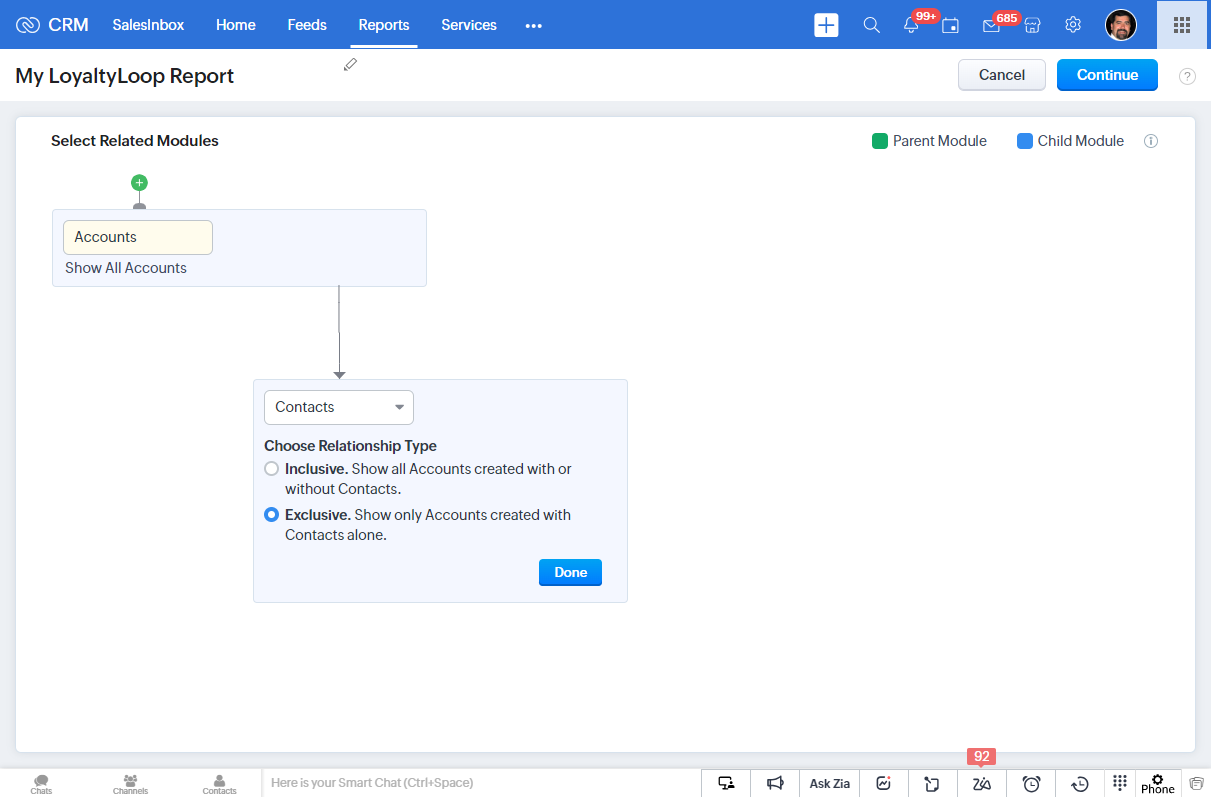
- Customers in Zoho are called Accounts, and they have Contacts associated with them. Create a report on the Account module, and associate the
Contact module. If you manage your contacts differently than described, create the appropriate Contact report for your company.
- Select the columns to include in your report. At a minimum, you need only the email address. However, you should consider
including First Name, Last Name, Account Name, Phone, and other details that will be helpful to you and your team when viewing feedback from
this
customer.
- Then, set any appropriate Filters to isolate the correct Accounts and Contacts. Finally, save the report.
- Now let’s schedule the report to run automatically, and email it to your LoyaltyLoop Launch File Email Address. Click
the Reports tab, then click Scheduled Reports on the left, then New Report Scheduler on the top.
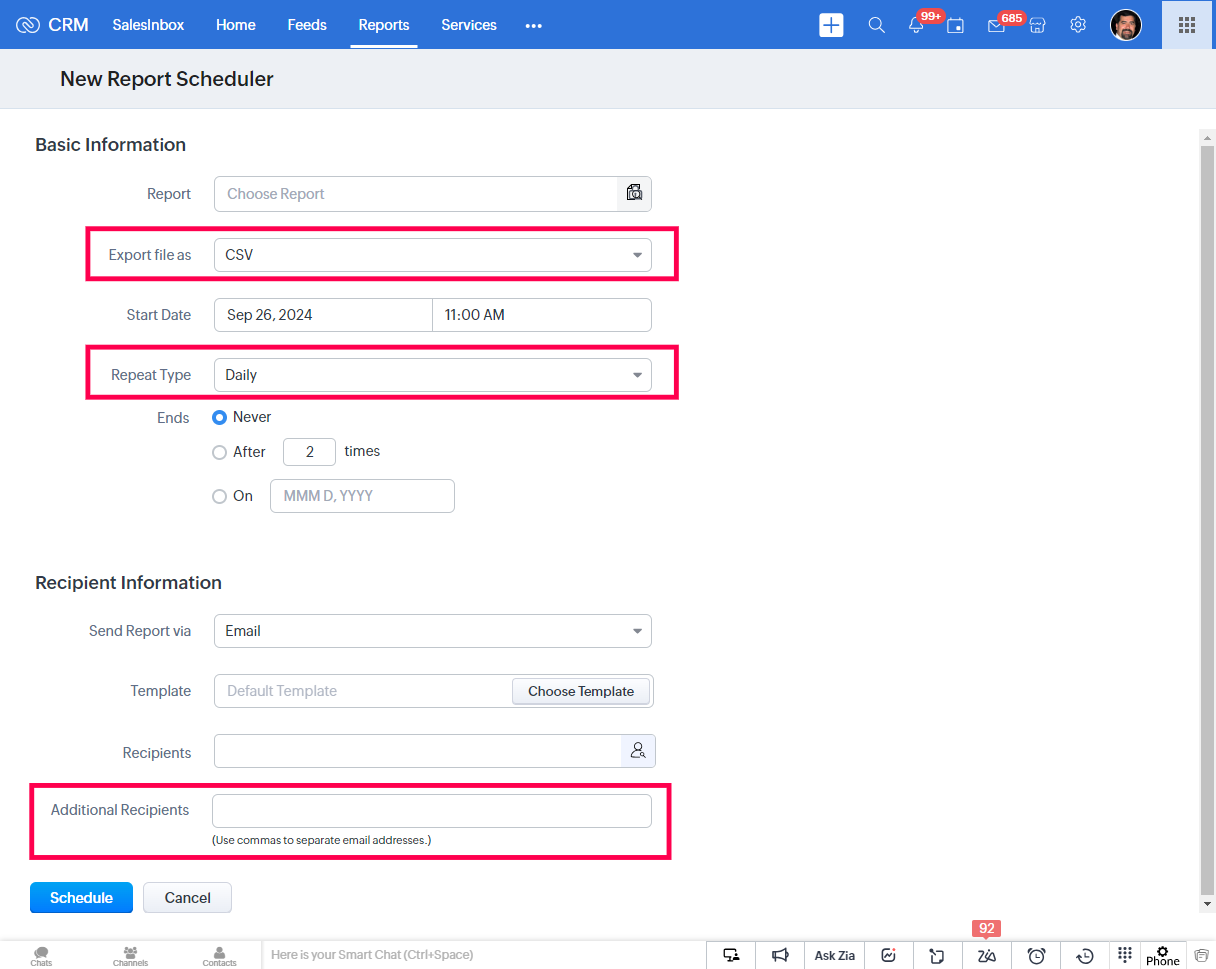
- On the next screen, you’ll configure the automation. Choose the report you just saved, set the export to CSV. Set the start date and time, and
then choose the frequency. If you send the report Daily, your surveys will be sent daily. If you send the report Weekly, your surveys will be
sent weekly.
- Lastly, set the Recipient to your Zoho user, and paste your LoyaltyLoop
Launch File Email Address in the Additional Recipients field, then click
Schedule.
- Done. Your contact report will be sent automatically to you and LoyaltyLoop, and surveys will be sent on that same frequency. Remember,
by default LoyaltyLoop applies a Touch Frequency Filter per your choosing, so you don’t have to worry about surveys being sent to the same
contact
each time your report is received.