How do I enable the Midnight integration?
What are the requirements to use this automation?
All you need is access to your Midnight account, and a reliable connection to the Internet. All versions of Midnight are supported.
How do I enable the Integration for Midnight?
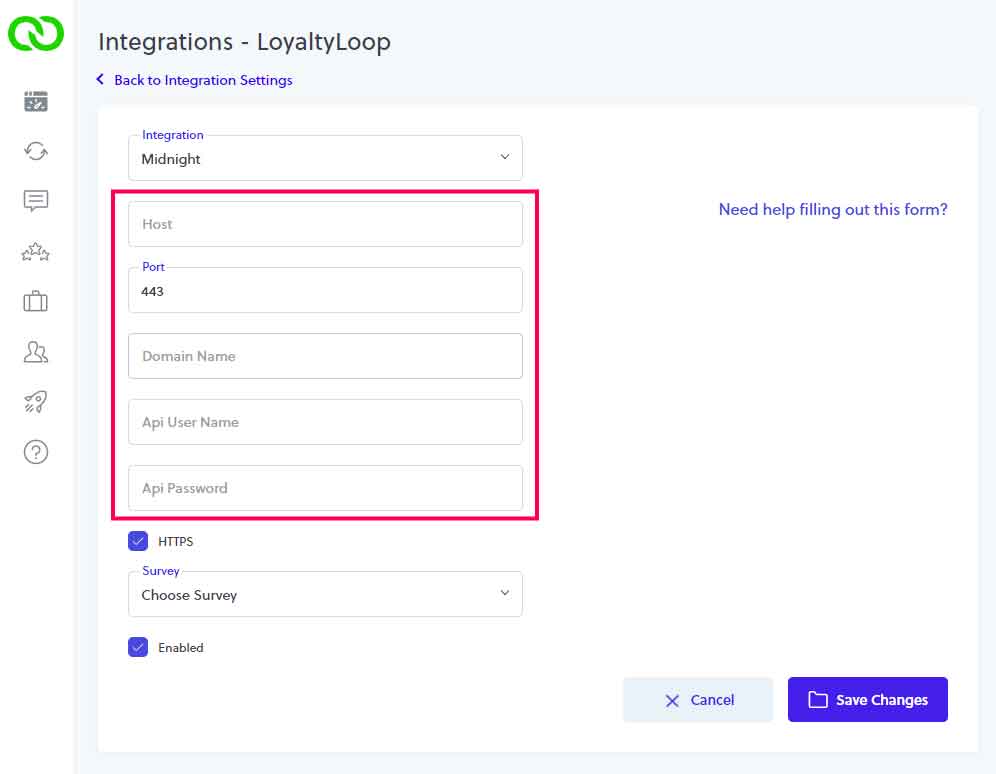
You need to enter 4 values into LoyaltyLoop. Please contact the Print Reach support and request the first 2 items below.
- Your Midnight Host Name
- Your Midnight Domain Name
- Your Midnight login email (this is the same email you use to access Midnight)
- Your Midnight API Key (see steps below to generate key)
Generate Midnight API Key
- Log in to Print Reach Central
- Go to: https://printreachcentral.com/[Your domain name]/login
- Click on the Login button
- On the Login page, enter your email address and password for Midnight. You can also use the "Forgot your Password?" link to create a new password if needed
- Once logged in, click on your name at the top right, then select "View Profile", then select "API Keys", and generate a new key for Midnight
- Lastly, click Log out
Enter Details into LoyaltyLoop
You can then either enter the details directly into LoyaltyLoop (go to Settings, then Integrations, then select Midnight from the drop-down and you'll see the form as shown below), or you can provide the 4 details to our support team (support@loyaltyloop.com).
Once that form is completed, the Midnight-LoyaltyLoop connection is made, and your contacts will flow to your LoyaltyLoop automatically.
How does the integration behave?
LoyaltyLoop will only get transaction contact data for Midnight Orders where the order has a Closed Date set. LoyaltyLoop will pull the last 30-days of transaction data when the integration is first connected. Every day thereafter, LoyaltyLoop will only pull the new transaction data since the last time it connected to Midnight.
Which Midnight fields are included in the Integration?
- EmailAddress
- FirstName
- LastName
- Title
- PhoneNumber
- CustomerID
- Company
- Address1
- Address2
- City
- StateCode
- ZipCode
- CSRName
- SalesRepName
- OrderTotal
- OrderNumber
- PurchaseOrderNumber
- CloseDate
- LicenseeName
- Project Name
- EmailAddress
- FirstName
- LastName
- Title
- PhoneNumber
- CustomerID
- Company
- Address1
- Address2
- City
- StateCode
- ZipCode
- CSRName
- SalesRepName
- OrderTotal
- OrderNumber
- PurchaseOrderNumber
- CloseDate
- LicenseeName
- Project Name
Can I impose a standard delay when sending my survey?
Yes. To ensure your customer has had the appropriate amount of time to experience your product or service, you can impose a delay on sending your survey. As stated below, we will set a 3-day delay on the default launch configuration. If you prefer something else, please contact our support team at support@loyaltyloop.com, or 888-552-5667 option 3. Here's a blog post explaining imposed launch delays.
How do I change my survey send (launch) frequency?
With the integration enabled, your data flows to LoyaltyLoop as you close transactions. You are now in position to have your surveys sent soon after the customer experiences your business.
By default, and unless you specify otherwise, upon activation of the integration LoyaltyLoop will reconfigure your survey launch configuration as follows:
- Weekly Launch Frequency
- Default Launching Day on Tuesday
- Imposed 3-day delay
If you'd like a different launch configuration, please contact our support team at support@loyaltyloop.com or 888-552-5667 option 3.
Your existing Touch Frequency Filter (TFF) will be maintained. For example, our default TFF is 90-days, meaning customers (based on email address) who have been asked to give you feedback within the prior 90-days (or as per your specific setting), will be removed from your launch. This prevents "over-touching" the same person too often.