ePS PrintSmith Vision - Integration Guide
PHASE 1: Preparation
What are the PSV requirements to use the integration?
Your specific PrintSmith Vision must meet the following:
- Version 5.3 or higher
- Cloud (not VPN) Accessible - hosted either by you or ePS
- Active ePS Maintenance
What does "Cloud Accessible" mean?
Your PSV must be accessible over the Internet via a browser only. If you access your PSV through VPN software (Virtual Private Network), this is NOT Cloud Accessible.

Does my PSV cloud access need to be secure?
The short answer is no. LoyaltyLoop will work with either HTTPS or HTTP. However, we strongly recommend HTTPS. If your PSV is hosted in the cloud by ePS, we connect using HTTPS since ePS installs an SSL certificate by default. If your PSV is hosted by you locally, we recommend (but is not required) that you install a SSL certificate and enable port forwarding so that we can connect. If you are self-hosting PSV, contact ePS for assistance with installing your SSL certificate.
If you choose to not use a secure Internet connection with SSL (HTTPS), LoyaltyLoop will support your choice to use HTTP only. However, please understand that LoyaltyLoop cannot be held responsible for your insecure data while in transit over the Internet to LoyaltyLoop cloud services.
How much does it cost?
The PSV Integration adds only $20/mo (or $240/yr) per PSV instance to your existing LoyaltyLoop subscription, plus a one-time setup fee of $50. If you think about the amount of time you devote to running your export reports, and sending them, combined with the benefits of richer feedback and reviews through the option of engaging your customers closer to their actual experience, the PSV Integration is a no-brainer.
How do I enable my PSV Integration?
- Sign in to LoyaltyLoop as an Admin User, then go to Settings
- If you have more than 1 location, click the location. Under Data Management, click Integrations, then click the plus (+) button, and select PrintSmith Vision from the drop-down
- Enter your (1) ePS Account Number, (2) PSV License Number, and (3) select your hosting method (you or ePS). Lastly, agree to the terms and click "Request Access".
- We will then work with ePS to enable the integration in your PSV - please allow up to 5 business days to process.
- Once enabled by ePS, we will then help you complete the integration on a screen share. The detailed instructions are below in PHASE 2: Configuration if you wish to complete this last step on your own.
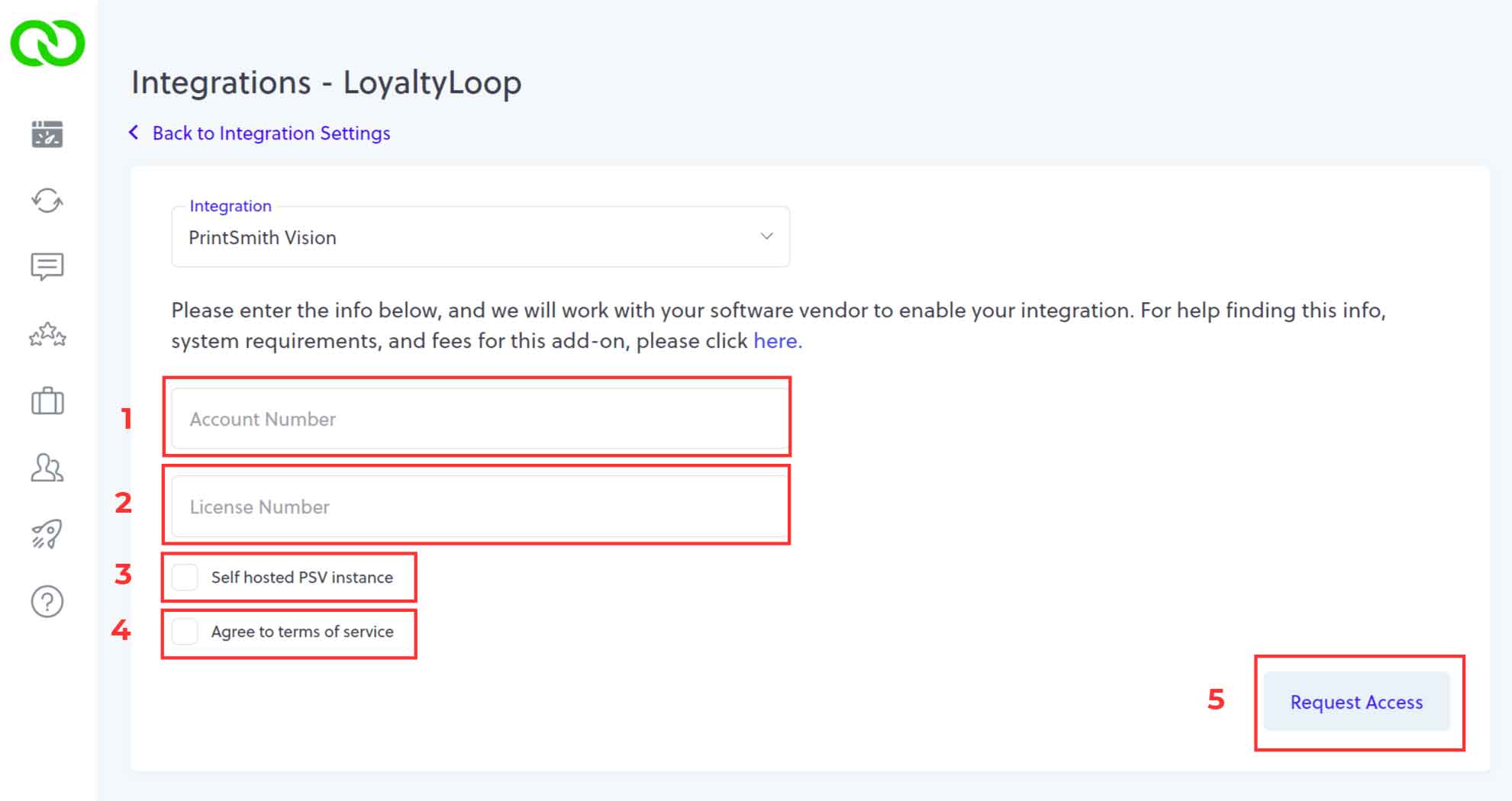

Need help with the hosting method in Step 3 above?
Hosting Method
- Access your PSV, then...
- You are ePS-Hosted if you see myprintdesk.net/PrintSmith/PrintSmith.html in the URL bar of your browser.
- You are Self-Hosted if you see :9191/PrintSmith/PrintSmith.html (no myprintdesk.net) in the URL bar of your browser
License and Account Numbers
- Your Account Number can be found on your ePS Invoice.
- If Self-Hosted: Watch this 2-minute ePS video to find your details.
- If ePS-Hosted: Try watching the above video. If you still can't find the details, don't worry. Just send an email
to our support
team (support@loyaltyloop.com) with either your ePS Account Name, Account Number, or the Business Owner's Name, along with the URL
you see when first accessing your PSV, and we'll work with ePS to collect the details for you.
How does the integration behave?
LoyaltyLoop will only get transaction contact data for PrintSmith Vision invoice where the Ship Date (pickup date) is set. The contact associated with the invoice is the contact sent to your LoyaltyLoop, and will be available to engage for feedback and reviews. LoyaltyLoop will pull the last 30-days of invoice transaction data when the integration is first connected. Every day thereafter, LoyaltyLoop will only pull the new transaction data since the last time it connected to PrintSmith Vision.
Which PSV invoice fields are included in the integration?
- email
- first name
- last name
- office phone
- mobile phone
- account name
- street
- city
- state
- zip code
- sales rep
- csr (taken by)
- invoice number
- po number
- invoice order date
- account id
- ship/pickup date
- total price
- description
- invoice title
- first name
- last name
- office phone
- mobile phone
- account name
- street
- city
- state
- zip code
- sales rep
- csr (taken by)
- invoice number
- po number
- invoice order date
- account id
- ship/pickup date
- total price
- description
- invoice title
Can I impose a standard delay when sending my survey?
Yes. To ensure your customer has had the appropriate amount of time to experience your product or service, you can impose a delay on sending your survey. As stated below, we will set a 3-day delay on the default launch configuration. If you prefer something else, please contact our support team at support@loyaltyloop.com, or 888-552-5667 option 3. Here's a blog post explaining imposed launch delays.
How do I change my survey send (launch) frequency?
With the integration enabled, your data flows to LoyaltyLoop as you close transactions. You are now in position to have your surveys sent soon after the customer experiences your business.
By default, and unless you specify otherwise, upon activation of the integration LoyaltyLoop will reconfigure your survey launch configuration as follows:
- Weekly Launch Frequency
- Default Launching Day on Tuesday
- Imposed 3-day delay
If you'd like a different launch configuration, please contact our support team at support@loyaltyloop.com or 888-552-5667 option 3.
Your existing Touch Frequency Filter (TFF) will be maintained. For example, our default TFF is 90-days, meaning customers (based on email address)
who have been asked to give you feedback within the prior 90-days (or as per your specific setting), will be removed from your launch. This
prevents "over-touching" the same person too often.